The library is used for quick search and to help generate a new playlist in the Playlist Generator.
The library offers tools to help manage a database. For example: The Verify command scans the database for any entries or file(s) that have been deleted from the hard disk, and removes the invalid entries automatically. With the built-in audio player you can preview tracks.
To create a music library:
On the top menu bar click Music library > Open Music Library
This opens the Music library window.
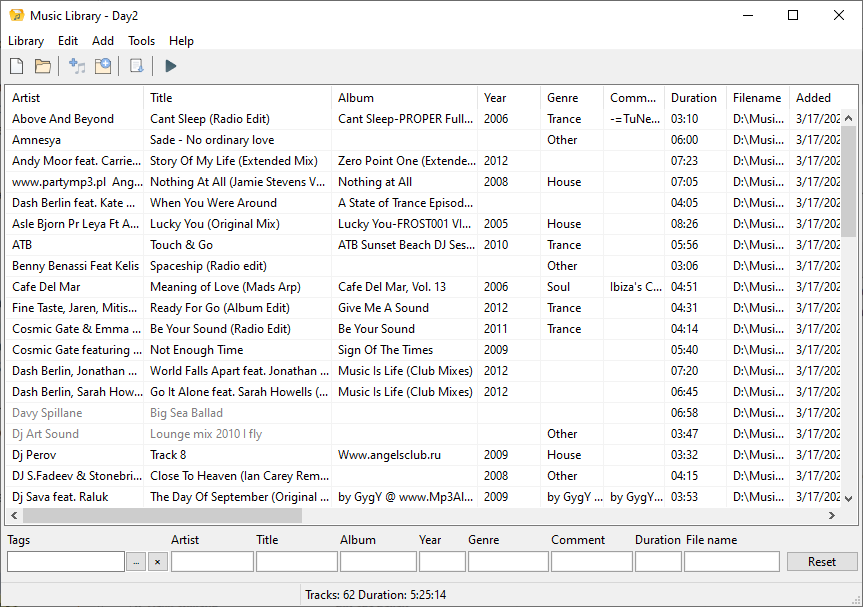
Now you can add music tracks: add single files or folders.
You can perform various actions using the Tools menu.
Process tracks – normalize tracks, detect BPM, remove silence, detect Mix and Mix Start points. More about track processing.
Check music tracks – checks audio files for errors, and then displays a list of bad tracks. This option also allows you to check the track's tags.
Schedule automatic library update – creates a task in RadioBOSS to scan the specified folders and add audio files to the database.
User defined fields
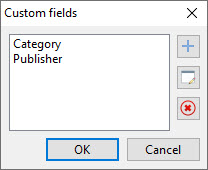
The music library allows the definition of up to five custom user fields. Custom fields appear in tag editors (Track Tool and bulk tag editor in the music library) and can also be used in the Report Generator.
Related topics: