RadioBOSS lets you schedule tracks for automatic playback at predefined times. You can use the scheduler to insert announcements and advertisements into the playback. The scheduler can play single files or playlists, and start Internet streams, linear input and perform various actions.
You can also schedule commands for automatic execution (e.g. take a random playlist or track from a folder, change the volume, generate a playlist, and more). Most of the commands can be easily scheduled using the wizard.
To create a scheduler event, follow these steps:
1. In the Control Panel, select the Scheduler tab.
The scheduler tab will open, with a list of all events scheduled.
Options at the top of the window
•On - activate and deactivate the scheduler.
•Manual. If the Manual option is active, the events will not launch automatically, but only be marked (in the Manual column). Use the Run now button to start the events manually. Events running the makelibrary, adsupdate, createbackup, download, weather commands always launch, regardless of the Manual option state.
The List button allows enabling an events filter, save and load scheduled events list to a file, and perform other tasks on the events list.
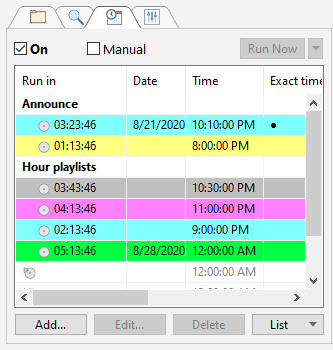
2. Click the Add... button.
The Event dialog will open, where you can configure the scheduling parameters.
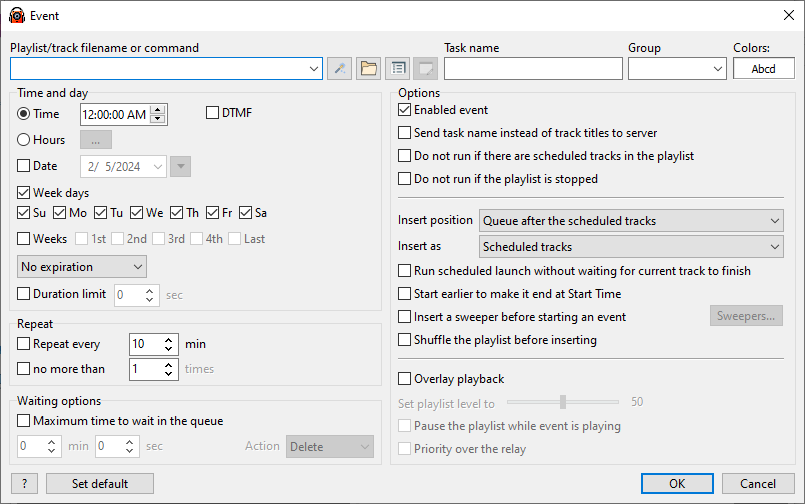
3. Click the Open button.
The Open dialog will open, where you can browse through the folders and select a file (track or playlist) to play.
You can also use the Wizard, which will help you create an action:

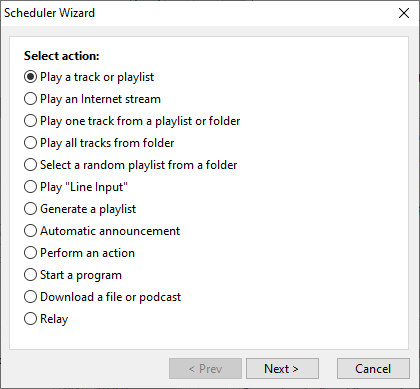
4. Set the date and time.
You can select a specific day and time to play a file only once, or schedule a repeated playback at a specific time on particular days. The scheduler also provides additional options to fine-tune the playback according to your preferences.
5. Click OK to save the scheduled task.
The event will be added to the event list in the scheduler window.
Related topics: