RadioBOSS lets you get started in just a few easy steps.
1. Run RadioBOSS. By default, additional information for music tracks is stored in the SQLite database. There are other options, please see this page for the details: Additional information storage
2. Set up Music Library. Music Library is used for quick-search and automatic playlist generation.
If you are not going to use these features, you can skip this step. (You can use RadioBOSS without using Music Library.)
In the top menu bar, select Tools -> Music Library.
The Music Library window will open:
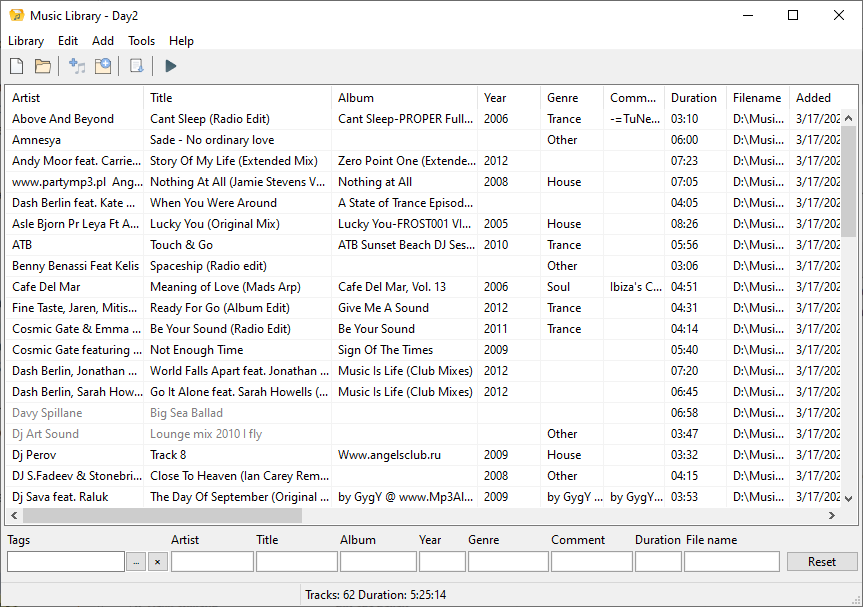
To add a folder containing music tracks, click Add -> Add folder. Add your music using the "Add..." commands.
Once added, the audio files will be listed in the music library along with their track information (artist, title, album, year, genre, etc.)
Close the music library.
3. Adding music to the playlist. You can use the Playlist menu or file explorer shown on the left (using drag-and-drop).
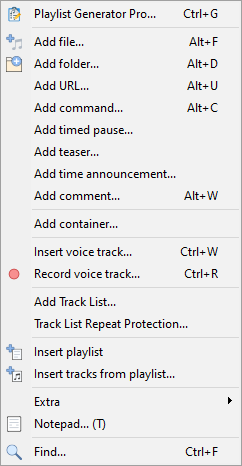
Available menu commands:
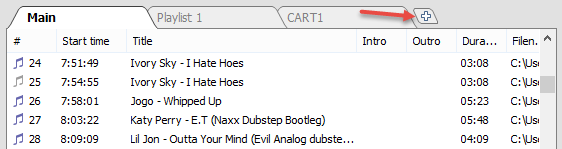
RadioBOSS supports multiple playlists, and you can add as many playlists as you need by clicking the “+” button (shown on the right). The button also lets you add a Cart wall or Web browser.
4. Assigning quick-access jingles. Select Jingles > Assign... to add jingles, so that you can play them by pressing the keys 1–9 on the keyboard.
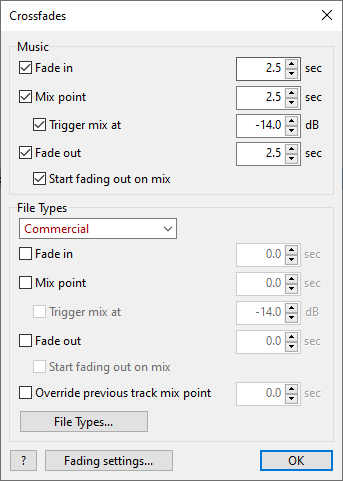
5. Set up crossfading. You can skip this step and use the default settings.
In the menu, click Settings -> Crossfades. You can find more information here: Crossfading.
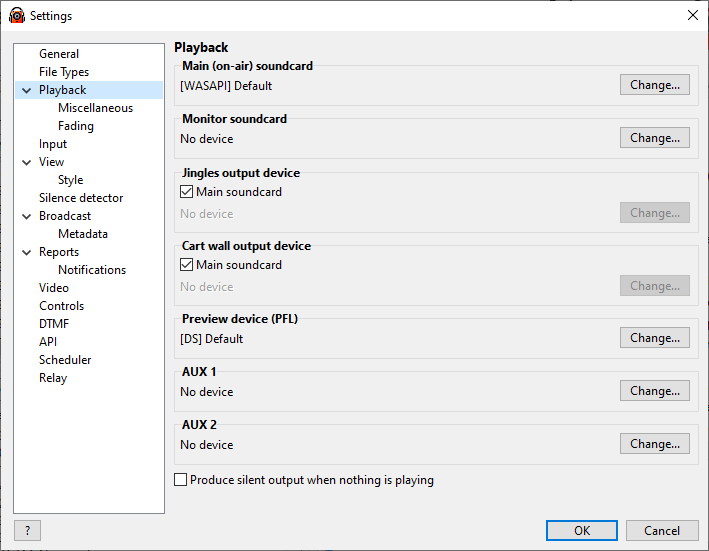
6. If you have multiple sound cards installed or want to configure advanced playback settings, go to the Settings window from the menu: Settings -> Options...
In the playback section, you can set up output sound cards and various output settings.
You can also configure pre-listening of a track. This way, you will be able to listen to that track without broadcasting it, on a separate audio device.
Read more here: playback parameters.
7. Setting up a broadcast. If you are running an Internet radio station, set up the broadcasting encoders. RadioBOSS supports ShoutCast, IceCast, and compatible servers. It also supports Windows Media Server and has a built-in broadcasting server, so that users can connect directly to RadioBOSS. No extra plugins are required. The Broadcasting Internet Radio section describes in detail how to set up broadcasting encoders.
8. Set up Hot Keys. Most hot keys are on by default: you can disable or reassign hot keys to suit your needs.
9. To start the playback, double-click any file in the playlist.
More information: