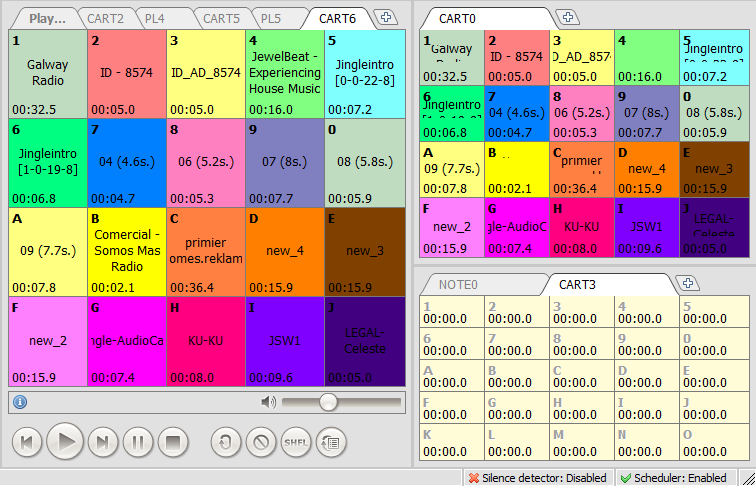
The Cart wall is used for instant on-demand playback of various audio files. Click on a cell to start/stop playback. Click on a playing item while holding the Shift key to restart it from the beginning.
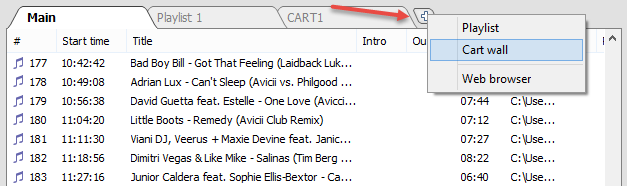
To add cart wall: click the "+" button in the Playlist section and select "Cart wall":
The 5x5 grid is created:
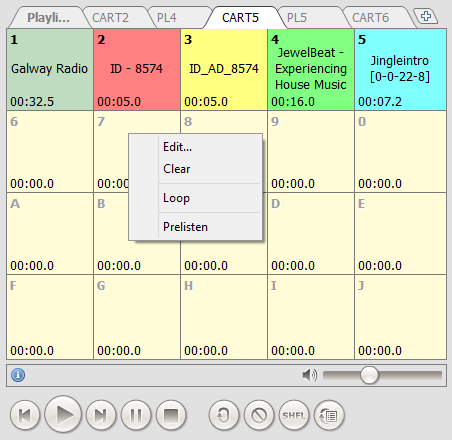
To assign tracks: right-click the cell and click "Edit...".
In the window that appears, select the file you want to play, along with its color and display name (the name is displayed in the center of the cell). Click OK.
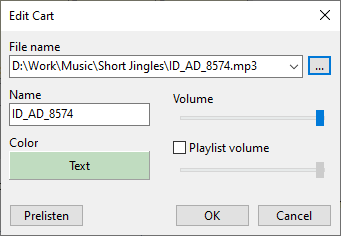
You can specify line.in or line2.in as the file name to playback the line input. Set file name to stopall to stop all playing carts. The cart wall also supports scheduler file name templates.
In the settings, you can enable the Playlist Volume option to set the playlist volume during playback of the Cart Wall item. If the option is not set, the general setting from the Fades section (Cart wall section) is used.
To fill cells, you can drag and drop tracks from Explorer. You can also drag and drop tracks between cells.
After setup is complete, you can play tracks when needed: simply click the corresponding cell. In the bottom-left corner, the remaining playback time will be shown. To stop playback, click the cell again. Right-click on a cell to edit it or enable loop.
Carts may be played on another audio device: playback settings.
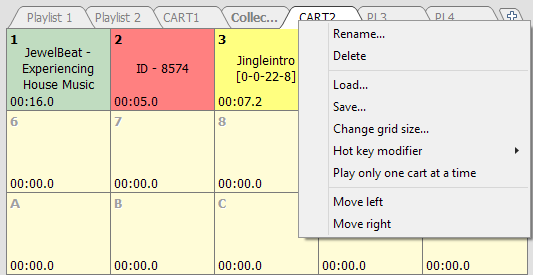
Right-click a cart wall tab to save or load the cart wall grid:
The No UAC option allows editing the cart wall for all users, even without the "Cart wall" rights.
You can change the size of the cart-machine's grid. To do that, right-click on the tab and select the "Change grid size..." command from the menu. You will see a window to enter the required number of rows and columns.
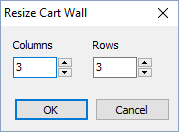
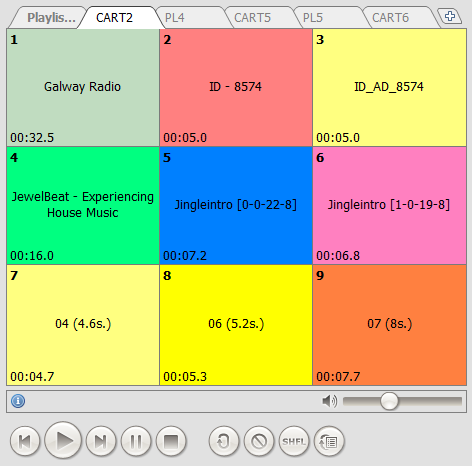
If you reduce the number of cells, the ones that do not fit into the resized grid will be removed.
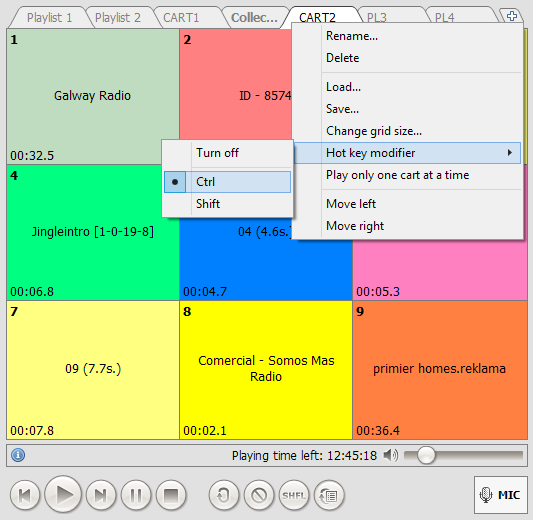
You can assign a hot key for the cart wall as follows: Right-click the cart wall tab, select “Hot key modifier” in the context menu, and set a desired option.
When Ctrl or Shift is set as a hot key modifier: to play a track, press (and release) Ctrl (or Shift), and then press the key corresponding to the necessary track. For example, if you want to listen to a track under the digit 2, press Ctrl, and then press the “2” key. If the track is under the letter M, press Ctrl, and then press the “M” key. When Caps Lock is set as a hot key modifier, simply press CapsLock+A (or any other key) to play the corresponding cart wall item.
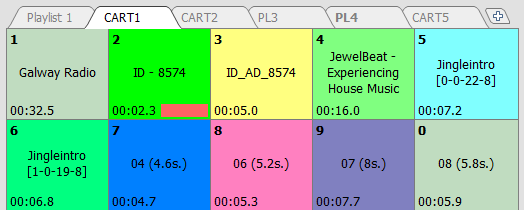
To stop the playback, press the same keys again.
You can create multiple cart walls in different work zones.
More information: